 visualclub.af

Default
The starting point: even lines at 30°.
 Scribble effect New
The Scribble effect from Illustrator, now in Affinity. Select a shape, some text or a group and the script fills it with a zigzag stroke that looks drawn by hand: same options, same presets and live preview.
Free, with your Visual Club account.Your Visual Club account takes two clicks with Google.
Have you tried Filter Gallery? 97 effects in one window inside Affinity, 8 of them free. Discover Filter Gallery


No rasterizing and no drawing line by line: the scribble comes from the outline of whatever you select.
Curves, shapes, text or a group. Several objects at once work too: each one is scribbled in its own color.
Pick a preset or move the controls. You see it live on the canvas, with the original hidden in the meantime.
You get a “Scribble” layer in place of your original, which is hidden (not deleted). One undo takes it all back.
Angle, path overlap, stroke width, curviness and spacing, with their variations, just like in Illustrator.
Every change shows on the canvas right away. A checkbox turns it off when the selection is heavy.
The result is curves with a stroke: change their color, width or nodes like any other.
No payments and no watermarks. It only asks for a Visual Club account to download it.
The window opens in the language of your Affinity on its own: English, Spanish, Portuguese, Japanese or Indonesian.
It does not use the network or touch your files: everything happens inside Affinity.
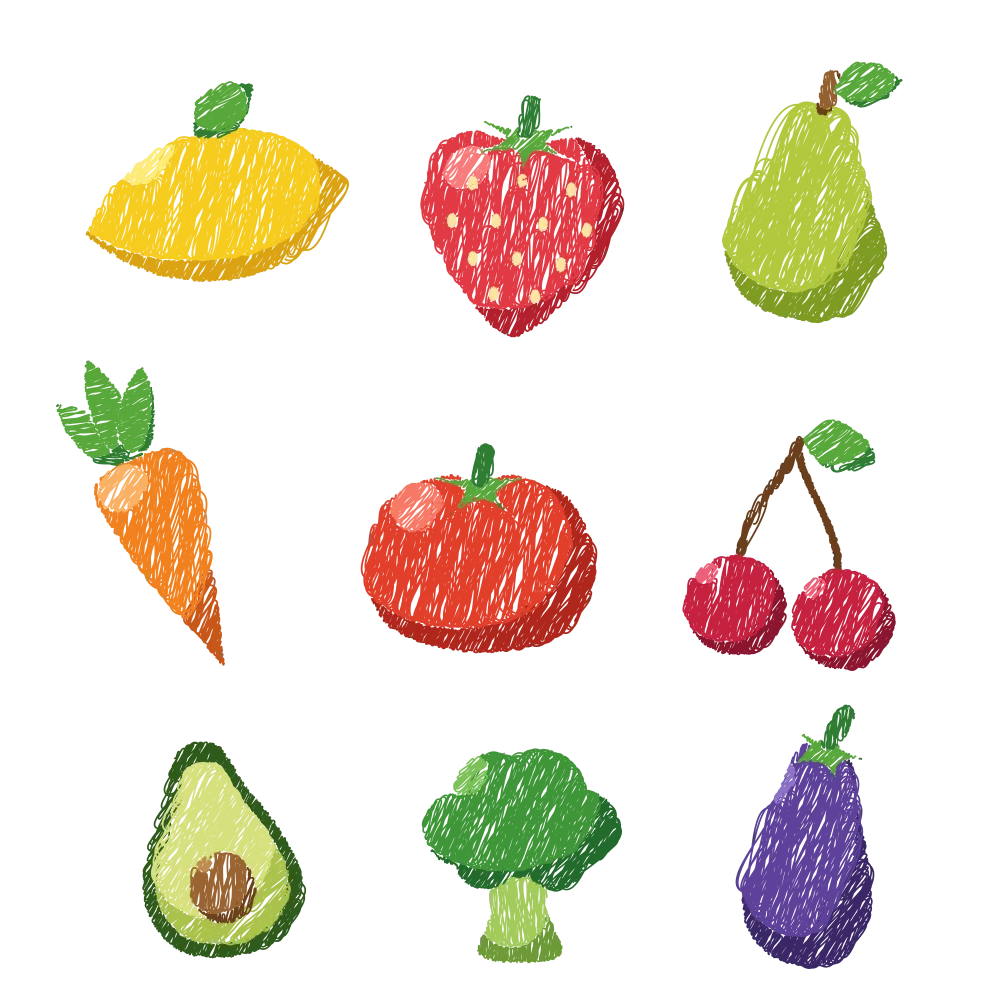
The eleven Illustrator presets, with the same numbers. Every fruit and vegetable on this page was scribbled by the script.
The starting point: even lines at 30°.
A thick, uneven stroke, like a child’s drawing.

Thick lines packed close, almost covering the shape.

A few lines, set far apart.

Thin, regular lines with barely curved turns.

Straight, tight lines with pointed turns.

A thick marker stroke, like a quick sketch.

Thin tangled loops, like a ball of yarn.

Wide, round turns from side to side.

Very thin lines set close: almost a solid fill.
A clean, even zigzag with no variation.

Your own values. Here, the crayon recipe.
The best-known trick with this effect: a drawing made of flat shapes that ends up looking colored with crayons. That is how the fruit and vegetables on this page are made.

One shape per tone, side by side: the base, the lit area and the highlight. None covers another.

Start with the largest shape: a thin stroke, spacing at its minimum with lots of variation and curviness halfway. The lines sit so close they look like wax.

Repeat with each shape, in its own color and at a slightly different angle. The colors sit side by side without overlapping.
The recipe, for a piece about 200 px wide: Angle 60° · Path Overlap -1 px (variation 1 px) · Stroke Width 1.4 px · Curviness 35% (variation 35%) · Spacing 0.01 px (variation 2.7 px)
It scribbles whatever has a color: the fill, the stroke or both, each in its own.

The scribble covers the shape from edge to edge, shapes with holes included.

A thick stroke is scribbled across its width, joins and caps included.

Text is scribbled letter by letter, with no need to convert it to curves.
One dialog, with the names you already know.
Install
Every script installs the same way: import it once and it stays in the Affinity script library.
Sign in with your Visual Club account and download the .afscripts file.
Open Window › Scripting › Scripts Library and use Import Scripts… from the panel ▾ menu. It shows up in the Visual Club category.
Select a shape, some text or a group and click Scribble. The first time, Affinity asks you to confirm that you trust the script.
A “Scribble” layer with the stroke, in place of your selection. The original is hidden, not deleted, and one undo takes it all back.
Affinity 3.3 or later, on Windows or macOS. They don’t use the internet or touch your files: everything happens inside Affinity.
Still have a question? Write to us at support@visualclub.af.
It has the same options and the same presets, and it draws the lines the same way: we compared it with Illustrator case by case. The difference is that it is not a live effect: when you apply it you get regular curves. Illustrator is a trademark of Adobe; Scribble is an independent script.
Yes. The scribble is a curve with a stroke: change its color or width whenever you like. To try other values, delete the “Scribble” layer, show the original again (it was hidden) and run the script once more.
Yes. Select the text as it is, without converting it to curves, and each letter is scribbled in its own color.
The scribble takes the fill of your shape, gradients included. Images and pixel layers are not scribbled.
Yes. It only asks for a Visual Club account to download it.
Affinity 3.3 or later, on Windows and macOS, with scripts turned on in the Affinity settings.
No. No antivirus flags it. You can check the VirusTotal report for this exact file.
For Affinity 3.3 or later, on Windows and macOS.
Free, with your Visual Club account.Your Visual Club account takes two clicks with Google.
Have you tried Filter Gallery? 97 effects in one window inside Affinity, 8 of them free. Discover Filter Gallery